
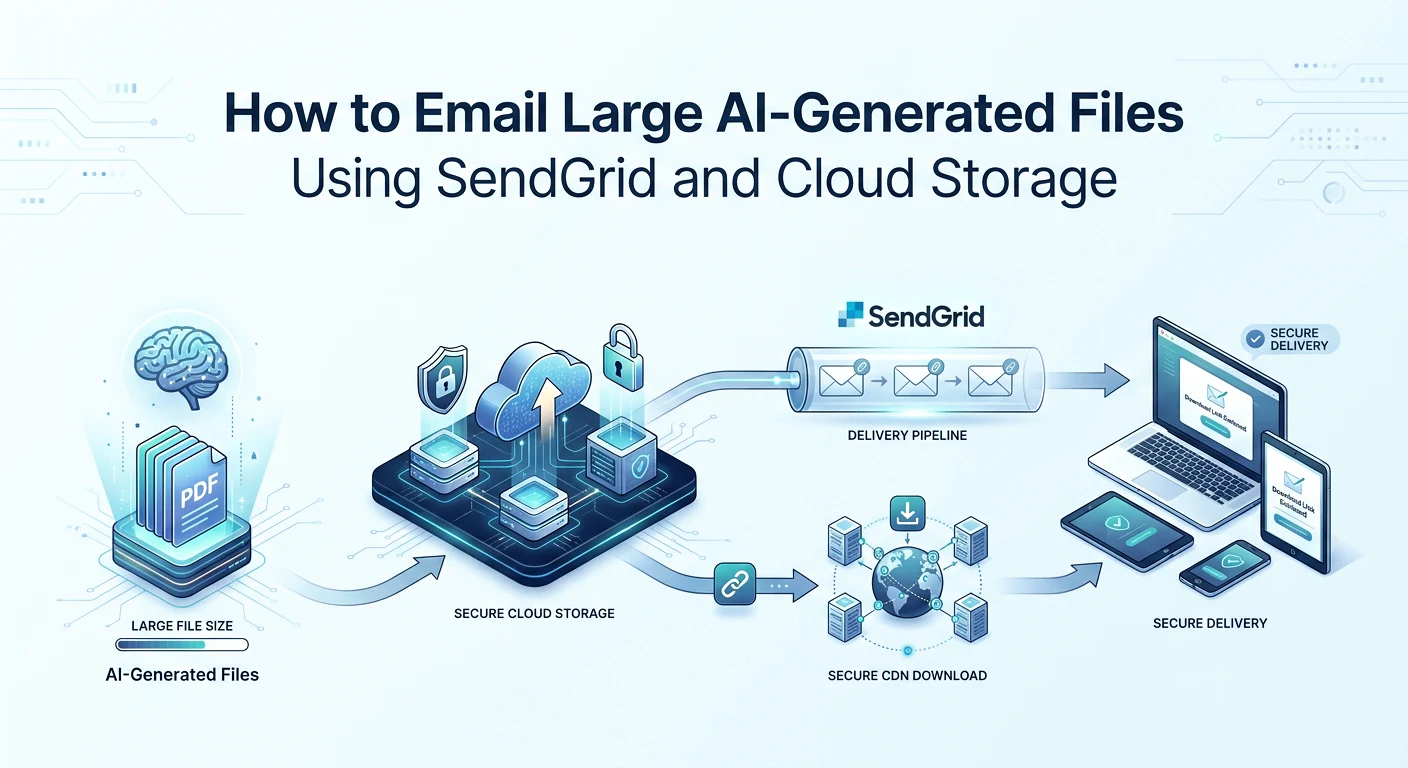
Why Email Attachments Are Unreliable for SaaS File Delivery
Email attachments fail not because of size limits alone but because large attachments render inconsistently on mobile, get stripped by corporate spam filters, and cannot resume interrupted downloads — all problems that a cloud storage download link solves by design.
See also: WeasyPrint PDF generation pipeline and FastAPI + Celery delivery pipeline.
I built an AI report generation SaaS that delivers PDFs by email after Celery workers finish generation. Three report sizes: ~50 KB (~15–25 pages), ~300 KB (~33 pages), and ~14 MB (~1,725 pages). A bundle of all three totals ~15 MB. Every size fits within SendGrid's 30 MB attachment limit — a 14 MB PDF base64-encoded becomes ~19 MB, well under the cap. Attachment-only delivery still fails in production for reasons unrelated to limits.
I learned this after the first production Horoscope delivery: the PDF attached successfully, SendGrid returned 202 Accepted, and the customer emailed back saying they could not open the attachment on their phone. The file was fine — the delivery channel was wrong for their device. That is when I added Vercel Blob upload and the download button to every delivery email, not because SendGrid rejected the file.
Failure mode 1 — mobile rendering: ~14 MB attachments open inconsistently on iOS Mail and Gmail mobile. Some clients show a download button; others buffer slowly or refuse to render the attachment inline. Customers on mobile data wait minutes or give up entirely.
Failure mode 2 — spam filter stripping: Corporate email gateways scan attachments above a few megabytes. A 19 MB encoded PDF triggers aggressive filtering. The customer receives the email body but no attachment — and no error message explaining why.
Failure mode 3 — no resume: Email attachment downloads do not resume on interruption. A customer on a flaky connection who loses progress at 80% starts over from zero. CDN-backed cloud downloads resume natively in the browser.
Failure mode 4 — device lock-in: An attachment lives inside the email client that received it. The customer cannot open the same file on a desktop later without forwarding the email or re-downloading. A permanent cloud URL works from any device, any time.
The 33% base64 overhead problem
Base64 encoding adds ~33% to file size. A 14 MB PDF becomes ~19 MB encoded. A 22 MB PDF becomes ~29 MB — still within SendGrid's 30 MB limit. A 25 MB PDF becomes ~33 MB — over the limit before SendGrid even receives it. Always calculate the encoded size, not the raw file size, when checking attachment feasibility.
| File size (raw) | Base64 size | Approach | Why |
|---|---|---|---|
| < 1 MB | < 1.4 MB | Attach + include link | Safe for all clients; link is backup |
| 1–10 MB | 1.4–14 MB | Attach + include link (link is primary) | Some mobile clients show slowly; link is reliable |
| 10–22 MB | 14–30 MB | Attach + include link | Approaching SendGrid limit; link critical |
| > 22 MB | > 30 MB | Link only — do not attach | Base64 exceeds 30 MB SendGrid limit |
| Any size (recommended default) | — | Upload to cloud + attach if < 10 MB | Most reliable; cloud URL works on all devices |
Even when your file fits within the attachment limit, cloud storage + download link is a better delivery mechanism for files over 5 MB. The attachment is a convenience for desktop email clients. The link is the primary delivery channel for everyone else — mobile users, corporate inboxes, and customers who need to re-download later.
The Hybrid Delivery Pattern: Cloud Upload First, Attachment and Link Together
Upload every AI-generated file to cloud storage immediately after generation, then include the cloud URL in the email body and attach the file for email clients that handle attachments well — the customer has two ways to access it.
The platform uses this hybrid approach on every delivery. Vercel Blob receives the upload always. SendGrid sends the email with both a styled "Download Report" button linking to the Blob URL and a base64 PDF attachment. If the attachment is stripped or fails on mobile, the link still works. If the customer prefers opening the PDF directly from Gmail on desktop, the attachment is there.
The two delivery paths in one email
The sequence in production:
- PDF generated — bytes in memory inside the Celery worker
- Upload to Vercel Blob via httpx PUT → returns permanent CDN URL → stored in MongoDB
payments.pdf_url - Email composed: URL as "Download Report" button + PDF as base64 attachment via SendGrid
Attachment - Customer clicks button → CDN-served download (fast, resumable) OR opens attachment → direct from email client
Four email types fire at different lifecycle points. Order confirmation emails (sent immediately after Stripe webhook, before the 4-hour job starts) have no attachment — just "Your report is generating, expected delivery 2–4 hours." Bundle confirmation follows the same pattern for three-report orders. Delivery emails fire when Celery completes, with attachment + link. Bundle delivery fires when all three sub-reports complete atomically — the coordinator checks MongoDB status on all three before sending a single email with three attachments and three download buttons.
Why upload happens before email — always
If the email fails, the file is already in cloud storage. An admin can resend the email manually with the same URL — no regeneration needed. If the upload is skipped and the email fails, the generated file may be lost entirely: not in email, not in storage, not recoverable without re-running a 141-minute AI pipeline.
Upload → store URL in MongoDB → send email. This order is non-negotiable. The cloud URL is the single source of truth for file delivery. The email is just the notification that points to it.
Always upload to cloud storage before sending the email. An email can be resent. A file that was never uploaded cannot be recovered. The cloud URL is the single source of truth for file delivery — the email is just the notification.
Uploading AI-Generated PDFs to Vercel Blob With httpx
Vercel Blob accepts file uploads via a simple HTTP PUT request authenticated with a bearer token — no SDK required, just httpx with the right headers and a timeout generous enough for large files.
The upload function lives in app/integrations/storage/vercel_blob.py. It takes filename and pdf_bytes, PUTs to https://blob.vercel-storage.com/{filename}, and returns the public CDN URL. MongoDB stores that URL before any email is attempted.
# app/integrations/storage/vercel_blob.py

import httpx
import structlog

from app.core.config import settings

logger = structlog.get_logger()


async def upload_pdf(filename: str, pdf_bytes: bytes) -> str:
    """Upload PDF to Vercel Blob and return the public CDN URL."""
    size_kb = len(pdf_bytes) // 1024

    async with httpx.AsyncClient() as client:
        response = await client.put(
            url=f"https://blob.vercel-storage.com/{filename}",
            content=pdf_bytes,
            headers={
                "Authorization": f"Bearer {settings.BLOB_READ_WRITE_TOKEN}",
                "x-content-type": "application/pdf",
                "x-add-random-suffix": "1",  # avoid filename collisions
            },
            timeout=60.0,  # 60s handles files up to ~14 MB
        )
        response.raise_for_status()
        data = response.json()
        url = data["url"]

    logger.info(
        "pdf_uploaded_to_blob",
        filename=filename,
        size_kb=size_kb,
        url=url,
    )
    return url
Filename collision prevention
Two orders generating at the same time with the same filename would overwrite each other on Blob storage. Options: include session_id in the filename, append a timestamp, or use the x-add-random-suffix header — Vercel Blob appends a random suffix automatically. I use both session_id in the filename and the random suffix header as defense in depth.
When to increase the timeout
60 seconds handles up to ~14 MB on typical upload speeds. For files over 50 MB, increase to 120–300 seconds. For files over 100 MB, consider multipart upload — cloud-provider-specific APIs handle chunking that a single PUT cannot. The Horoscope report at ~14 MB completes well within 60 seconds on production Render workers.
Store the Blob URL in your database immediately after upload returns — before sending the email, before updating any other status. If the process fails after upload but before the email send, you have the URL to retry delivery without regenerating the PDF.
Sending the Delivery Email With the SendGrid Python SDK
For SendGrid email large file attachment Python cloud storage delivery, the SDK composes emails with base64-encoded attachments and HTML bodies using the Mail helper class — the Attachment object handles encoding, content type, and disposition.
Library: from sendgrid import SendGridAPIClient and from sendgrid.helpers.mail import Mail, Attachment, FileContent, FileName, FileType, Disposition. Client: SendGridAPIClient(settings.SENDGRID_API_KEY). From address: settings.SENDGRID_FROM_EMAIL. Templates are inline HTML strings in service.py — not SendGrid dynamic templates — because four transactional email types do not justify template editor overhead.
# app/integrations/email/service.py

import base64
import structlog

from sendgrid import SendGridAPIClient
from sendgrid.helpers.mail import (
    Mail, Attachment, FileContent, FileName, FileType, Disposition,
)

from app.core.config import settings

logger = structlog.get_logger()


async def send_report_email(
    customer_email: str,
    pdf_bytes: bytes,
    pdf_url: str,
    report_name: str = "Your Report",
) -> bool:
    """Send delivery email with cloud link + base64 attachment. Non-fatal on failure."""
    if not settings.SENDGRID_API_KEY or not settings.SENDGRID_FROM_EMAIL:
        logger.warning("sendgrid_not_configured")
        return False

    try:
        encoded_pdf = base64.b64encode(pdf_bytes).decode()

        message = Mail(
            from_email=settings.SENDGRID_FROM_EMAIL,
            to_emails=customer_email,
            subject=f"{report_name} — Your Report is Ready",
            html_content=_build_delivery_html(report_name, pdf_url),
        )
        message.attachment = Attachment(
            file_content=FileContent(encoded_pdf),
            file_name=FileName("report.pdf"),
            file_type=FileType("application/pdf"),
            disposition=Disposition("attachment"),
        )

        sg = SendGridAPIClient(settings.SENDGRID_API_KEY)
        sg.send(message)
        logger.info("report_email_sent", email=customer_email, size_kb=len(pdf_bytes) // 1024)
        return True

    except Exception as e:
        logger.warning("email_send_failed", email=customer_email, error=str(e))
        return False  # non-fatal — do not raise


def _build_delivery_html(report_name: str, pdf_url: str) -> str:
    return f"""
    <div style="font-family: sans-serif; max-width: 600px; margin: 0 auto;">
        <h2>Your {report_name} is ready</h2>
        <p>Your AI-generated report is attached and available for download:</p>
        <a href="{pdf_url}"
           style="display:inline-block; padding:12px 24px; background:#6366f1;
                  color:white; text-decoration:none; border-radius:6px; margin:16px 0;">
           Download Report →
        </a>
        <p style="color:#888; font-size:14px;">
            The link above will always work, even on mobile.
        </p>
    </div>
    """
Why inline HTML over SendGrid dynamic templates
SendGrid dynamic templates require managing template IDs and version numbers in the SendGrid dashboard. Inline HTML strings live in code, version-controlled with the rest of the application. For four transactional email types — order confirmation, bundle confirmation, individual delivery, bundle delivery — the overhead of the template system is not justified. For 20+ email types with non-developer editors, dynamic templates make more sense.
Honest current state: no email open/click tracking enabled. No retry mechanism specific to email — if delivery fails after the Celery task marks complete, an admin re-sends manually using the stored Blob URL. The PDF is safe in cloud storage; only the notification failed. Missing SENDGRID_API_KEY or SENDGRID_FROM_EMAIL logs a warning and returns False — the worker still marks the report ready in MongoDB with the Blob URL intact.
Always make email delivery non-fatal. If send_report_email() raises an exception, do not let it propagate to the Celery task — the task would retry, regenerate the entire AI pipeline, and attempt email again. Log the failure, return False, and let an admin re-send manually. The PDF is already in cloud storage — email is just notification.
Bundle Delivery: Multiple PDFs From Cloud Storage in One Email
For a bundle of three separately-generated PDFs, download each from cloud storage using httpx, then attach all three to one SendGrid email — the download step reunites files generated by separate workers on separate timelines.
Three Celery workers generate three reports independently — Life Clarity (~50 KB), Personal Blueprint (~300 KB), Personal Horoscope (~14 MB). Each worker uploads its PDF to Blob and stores the URL in MongoDB. A bundle coordinator task waits until all three statuses are ready, then downloads each PDF from its stored URL and attaches all three to one email. Total bundle size: ~15 MB — well within SendGrid's 30 MB limit.
# app/integrations/email/service.py

import base64
import httpx
import structlog

from sendgrid import SendGridAPIClient
from sendgrid.helpers.mail import (
    Mail, Attachment, FileContent, FileName, FileType, Disposition,
)

from app.core.config import settings

logger = structlog.get_logger()


async def send_bundle_delivery_email(
    customer_email: str,
    lc_pdf_url: str,
    bp_pdf_url: str,
    ph_pdf_url: str,
) -> bool:
    """Download all 3 report PDFs from Blob storage, attach to one email."""
    if not settings.SENDGRID_API_KEY:
        return False

    try:
        async with httpx.AsyncClient() as client:
            # Different timeouts — horoscope is ~14 MB, others are smaller
            lc_resp = await client.get(lc_pdf_url, timeout=60.0)
            bp_resp = await client.get(bp_pdf_url, timeout=60.0)
            ph_resp = await client.get(ph_pdf_url, timeout=120.0)
            lc_resp.raise_for_status()
            bp_resp.raise_for_status()
            ph_resp.raise_for_status()

        message = Mail(
            from_email=settings.SENDGRID_FROM_EMAIL,
            to_emails=customer_email,
            subject="Your Complete Bundle is Ready",
            html_content=_build_bundle_html(lc_pdf_url, bp_pdf_url, ph_pdf_url),
        )

        for label, pdf_bytes in [
            ("life-clarity-report.pdf", lc_resp.content),
            ("personal-blueprint-report.pdf", bp_resp.content),
            ("personal-horoscope-report.pdf", ph_resp.content),
        ]:
            message.add_attachment(Attachment(
                file_content=FileContent(base64.b64encode(pdf_bytes).decode()),
                file_name=FileName(label),
                file_type=FileType("application/pdf"),
                disposition=Disposition("attachment"),
            ))

        SendGridAPIClient(settings.SENDGRID_API_KEY).send(message)
        return True

    except Exception as e:
        logger.error("bundle_email_failed", email=customer_email, error=str(e))
        return False
Why download-and-reattach instead of passing bytes directly
The three PDFs are generated by three separate Celery workers in separate processes on separate Render services. Each worker uploads its PDF to Blob and stores the URL in MongoDB — then exits, releasing memory. The bundle coordinator task has access to the three URLs from MongoDB, not the original bytes. Downloading via httpx and reattaching reunites the separately-generated files into one email without requiring workers to share memory or pass bytes between processes. Horoscope download uses a 120-second timeout versus 60 seconds for the smaller reports — the ~14 MB file takes longer to fetch from Blob CDN. Total encoded bundle size stays under 20 MB — comfortably within SendGrid's 30 MB ceiling.
Public URLs vs Pre-Signed URLs: Which One Does Your SaaS Need?
Public URLs are simpler and sufficient when files are not sensitive — use pre-signed URLs with expiry when customers should only access their specific file for a limited time, or when files contain personally identifiable information.
When public Blob URLs are fine
The platform uses public Vercel Blob URLs with no expiry. The URL is stored in MongoDB per customer order and delivered in the email. Even without authentication, finding someone else's report URL requires knowing the UUID-based filename — effectively unguessable. For most B2C AI report products where the customer owns the output, this is acceptable. Hassan Raza documents the full delivery pipeline — Stripe webhooks, Celery workers, PDF generation, and this email layer — across multiple posts on hassanr.com.
When to use pre-signed URLs with expiry
Pre-signed URLs (AWS S3, GCS, Azure Blob) embed an expiry timestamp and HMAC signature. After expiry, the URL returns 403. Use them when files contain medical or financial records, enterprise compliance mandates access control, you want download analytics (each unique URL maps to one customer), or you want to revoke access after account cancellation. Typical expiry: 24–72 hours — long enough for the customer to download, short enough to limit unauthorized access after account termination. Products with sensitive content should never rely on permanent public URLs regardless of filename entropy.
Frequently Asked Questions
Use the SendGrid Python SDK with Mail, Attachment, and base64-encoded FileContent. Install sendgrid, encode pdf_bytes with base64.b64encode().decode(), set FileType to application/pdf and Disposition to attachment. SendGrid's limit is 30 MB, but base64 adds 33% overhead — a 22 MB raw file becomes ~30 MB encoded. Always upload to cloud storage first, include the URL as a download link in the HTML body, and attach for desktop clients. Make delivery non-fatal: log failures and return False instead of raising, so a Celery task does not retry the entire AI pipeline.
Generate the file, upload to cloud storage, store the URL, then email with a link and optional attachment. The hybrid pattern: Celery worker produces PDF bytes → httpx PUT to Vercel Blob or AWS S3 → save URL in MongoDB → SendGrid email with download button and base64 attachment. Upload before sending: if email fails, the URL survives for manual resend. Works for instant small reports or hours-later large AI jobs. For bundles, each worker uploads independently; a coordinator downloads all three PDFs via httpx and attaches them to one email when complete.
Cloud storage plus a download link is the best primary delivery for files over 5 MB. Upload immediately after generation, include a CDN-backed link in the email body, and optionally attach for desktop email clients. For sensitive files, use pre-signed URLs with 24–72 hour expiry on AWS S3 or GCS. For non-sensitive AI reports, permanent public URLs with UUID filenames are simpler. SendGrid's attachment limit is 30 MB; base64 encoding adds 33%, so the practical raw file limit is ~22 MB. Even when files fit, the link is more reliable than attachment-only delivery on mobile.