
What Happens When You Build 2 Tools Without a Registry
Without a registry, each new tool requires manual updates to the sidebar, the search, the status badges, and the routing — and by tool #3, these updates become archaeology through inconsistent files. Platform totals from production: 10 tools, 6 networks, $20-60/month AI spend, 58,641 lines, 4-month solo build.
See also: command palette built on the registry and multi-tenant Prisma architecture.
I built the first two tools in an affiliate marketing SaaS without defining a shared interface. Each tool had slightly different configuration shapes — different field names, different status values, different navigation placement logic scattered across files. Tool #1 lived in the sidebar as a hardcoded link. Tool #2 had its own conditional block. When I needed tool #3, the sidebar code already had tool-specific branches. When I built the command palette, it queried three different data sources to assemble search results. Retrofitting both existing tools to a shared ToolConfig interface took one full week. The right order: define the interface, register tool #1, build. The wrong order — what I did: build, build, realise you need a registry, retrofit. If you are on tool #2 and reading this, stop and define ToolConfig today — the cost only compounds from here.
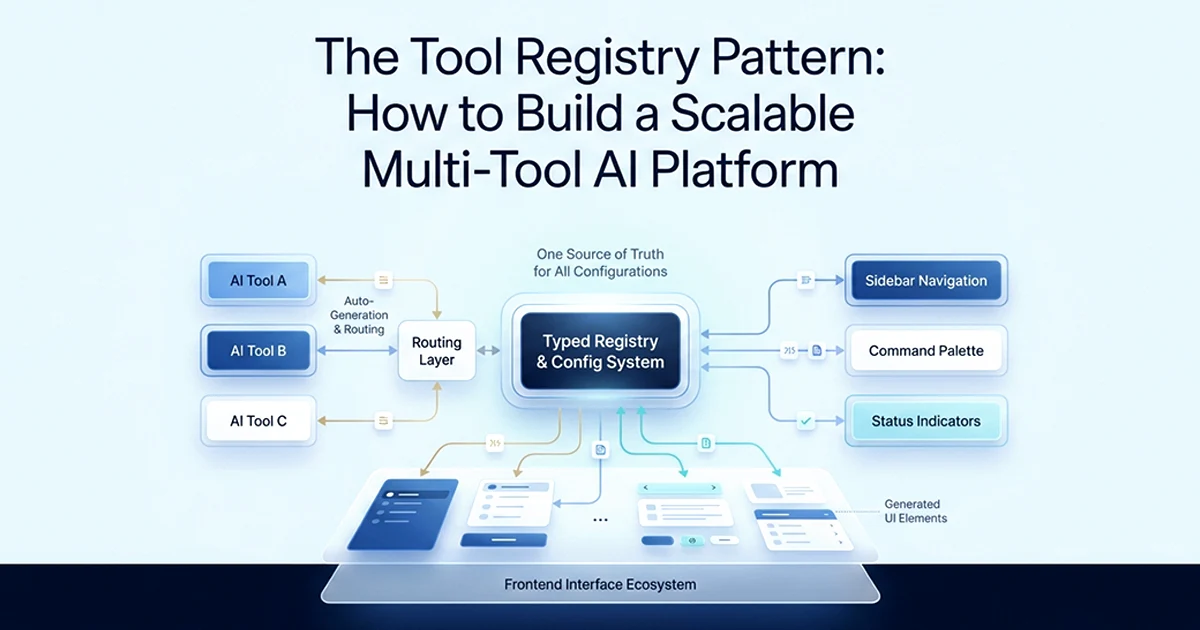
Five UI surfaces now auto-generate from the registry: sidebar navigation, status badges, command palette search, dynamic routing, and platform statistics like "7 AI tools." Before the registry, updating any of these meant hunting through multiple files and hoping you did not miss one. The mistake is invisible at two tools. At three, you feel it. At seven, every new feature requires archaeology.
The affiliate marketing SaaS I built now registers 10 tools in a single array. Seven are AI-powered. Two are pure calculation utilities with no model calls. One mini-app lives in a separate apps registry because it has a fundamentally different UX — a Canva-style editor, not a wizard. Even that exception is documented; everything else follows ToolConfig without deviation.
| Task | Without registry | With registry |
|---|---|---|
| Add tool to sidebar | Edit sidebar component, add hardcoded link | Add one ToolConfig entry |
| Update tool status badge | Find and update conditional in sidebar code | Change one status field |
| Add tool to command palette | Edit search data separately | Automatic (registry is the source) |
| Validate tool slug in routing | Hardcoded list of valid slugs | findToolBySlug() from registry |
| Count AI tools | Update a hardcoded number | tools.filter(t => t.hasAI).length |
| Add "coming soon" tool | Update 3–4 places across the codebase | Add entry with status: 'coming-soon' |
| Deprecate a tool | Find and remove from each file | Change status: 'deprecated' |
The most expensive part of multi-tool SaaS development isn't writing the tools — it's coordinating the UI surfaces that span all tools. Without a registry, that coordination lives in your head and breaks when you forget. With a registry, it lives in code and updates automatically.
The ToolConfig Interface: Every Field and Why It Exists
The ToolConfig interface is the contract that every tool must fulfill — it contains everything the platform needs to know about a tool, separated from what the tool actually does.
When I finally sat down to define the interface, I listed every place tool metadata appeared in the codebase: sidebar links, route validation, command palette items, marketing cards, and status badges. Every field in ToolConfig maps to at least one of those surfaces. Nothing is decorative. The navTrafficType and navChannel fields exist because affiliate marketers organise tools by traffic source — organic YouTube content vs paid Facebook campaigns vs utility calculators. Without those fields, the sidebar would need hardcoded section headers.
// src/features/tools/types/tool.ts

type ToolStatus = 'active' | 'beta' | 'coming-soon' | 'deprecated'
type ToolSection = 'facebook' | 'instagram' | 'youtube' | 'tiktok' | 'offers' | 'other'
type ToolTrafficType = 'organic' | 'paid' | 'other'
type ToolNavChannel = 'facebook' | 'instagram' | 'youtube' | 'tiktok' | null

interface ToolConfig {
  id: string              // Unique ID: 'facebook-page-starter'
  name: string            // Display name: 'Facebook Page Starter'
  slug: string            // URL slug: /tools/facebook-page-starter
  description: string     // Short description for cards and search
  longDescription?: string
  icon: string            // Lucide icon name: 'Facebook', 'Youtube'
  iconImage?: string      // Optional: /public/icons/tool.svg
  section: ToolSection    // Primary grouping (facebook, youtube, etc.)
  category: string        // 'Content' | 'Finance' | 'Analytics' | etc.
  purpose: string         // 'creation' | 'research' | 'optimization'
  experienceLevel: string // 'beginner' | 'intermediate' | 'advanced'
  status: ToolStatus      // Controls visibility and badge rendering
  hasAI?: boolean         // Shows AI badge in sidebar + command palette
  version?: string
  order?: number          // Explicit ordering within section
  navTrafficType: ToolTrafficType   // Top-level sidebar group
  navChannel: ToolNavChannel        // Second-level sidebar group
}
The two categories of fields
Navigation fields drive UI: id, name, slug, icon, section, status, hasAI, order, navTrafficType, navChannel. These change rarely — once a tool ships, its slug and nav placement stay fixed. Discovery fields drive search and documentation: description, longDescription, category, purpose, experienceLevel. These are editorial and may change frequently as you improve copy. The separation matters when you refactor: navigation fields affect routing and links; discovery fields affect search strings and marketing pages without touching URLs.
The status field — the full lifecycle
'active': visible in nav, searchable, accessible at /tools/[slug]. 'beta': visible with a yellow Beta badge — signals instability without hiding the tool. 'coming-soon': visible but disabled, grayed out, not searchable in the command palette — users see it exists but cannot click through. 'deprecated': hidden from all UI surfaces — filtered out of sidebar, search, and routing. The status field is your tool lifecycle manager in one string. Promoting a beta tool to active is a one-field change. Launching a coming-soon tool means flipping status to active — sidebar, search, and routing all update without touching component code.
The Registry: A Typed Array That's the Single Source of Truth
The registry is a typed ToolConfig[] array where each entry fully describes one tool — adding a new entry is the only change needed to make a new tool visible across every UI surface in this tool registry pattern Next.js multi-tool AI platform scalable architecture.
The platform now has 10 registered tools: 7 with hasAI: true, 2 non-AI tools (Commission Calculator and Link Tracker), and 1 mini-app (AdCanvas AI) in a separate apps registry. The flat array lives in one file — no nested JSON, no database table for navigation metadata. Sort order within sections uses the optional order field; tools without it default to the bottom of their group. Version strings on individual entries track which prompt revision a tool is running — useful when you A/B test model changes across tools independently.
// src/features/tools/config/tools.ts

import type { ToolConfig } from '../types/tool'

export const tools: ToolConfig[] = [
  {
    id: 'facebook-page-starter',
    name: 'Facebook Page Starter',
    slug: 'facebook-page-starter',
    description: 'Generate page names, logos, and descriptions for a Facebook affiliate page',
    icon: 'Facebook',
    section: 'facebook',
    category: 'Content',
    purpose: 'creation',
    experienceLevel: 'beginner',
    status: 'active',
    hasAI: true,           // AI badge in sidebar + command palette
    order: 1,
    navTrafficType: 'paid',
    navChannel: 'facebook',
  },
  {
    id: 'commission-calculator',
    name: 'Commission Calculator',
    slug: 'commission-calculator',
    description: 'Calculate expected earnings across different commission structures',
    icon: 'Calculator',
    section: 'offers',
    category: 'Finance',
    purpose: 'research',
    experienceLevel: 'beginner',
    status: 'active',
    hasAI: false,          // no AI badge — pure calculation tool
    order: 1,
    navTrafficType: 'other',
    navChannel: null,
  },
  {
    id: 'youtube-script-generator',
    name: 'YouTube Script Generator',
    slug: 'youtube-script-generator',
    description: 'Generate full video scripts with hooks, content sections, and CTAs',
    icon: 'Youtube',
    section: 'youtube',
    category: 'Content',
    purpose: 'creation',
    experienceLevel: 'intermediate',
    status: 'active',
    hasAI: true,
    order: 3,
    navTrafficType: 'organic',
    navChannel: 'youtube',
  },
]

// Stats that auto-update as tools are added
export const AI_TOOL_COUNT = tools.filter(t => t.hasAI).length       // 7
export const ACTIVE_TOOL_COUNT = tools.filter(t => t.status === 'active').length

// Helpers used across the platform
export function findToolBySlug(slug: string) {
  return tools.find(t => t.slug === slug) ?? null
}

export function getActiveTools() {
  return tools.filter(t => t.status === 'active')
}
Derived data from the registry
Never hardcode "7 AI tools" in marketing copy or dashboard headers. AI_TOOL_COUNT derives from the registry — add tool #11 with hasAI: true and the count updates everywhere that imports it. findToolBySlug() powers dynamic routing. getActiveTools() feeds the command palette. These three helpers eliminate duplicate filter logic scattered across components. The registry file becomes the first place a new developer opens when onboarding — one file explains the entire tool landscape.
Auto-Generating the Sidebar: One Function, Zero Hardcoded Links
getToolsGroupedForNav() transforms the flat registry array into a nested structure of traffic type → channel → tools, which the sidebar renders without a single hardcoded tool name or link.
The sidebar groups tools by how affiliate marketers think about traffic: organic channels (YouTube, Instagram), paid channels (Facebook ads), and utility tools (calculators, link trackers). That hierarchy lives in navTrafficType and navChannel — not in sidebar JSX. Empty channels and empty traffic groups are filtered out automatically, so you never render an "Instagram" section with zero tools. Adding a new channel to NAV_CHANNEL_ORDER is a one-line change when you expand to a new platform.
// src/features/tools/config/nav.ts

import { tools } from './tools'
import type { ToolConfig, ToolTrafficType, ToolNavChannel } from '../types/tool'

const NAV_TRAFFIC_ORDER: ToolTrafficType[] = ['organic', 'paid', 'other']
const NAV_CHANNEL_ORDER: (ToolNavChannel)[] = [
  'facebook', 'instagram', 'youtube', 'tiktok', null
]

type ToolNav = {
  trafficType: ToolTrafficType
  channels: {
    channel: ToolNavChannel
    tools: ToolConfig[]
  }[]
}

export function getToolsGroupedForNav(): ToolNav[] {
  const activeTools = tools.filter(t => t.status !== 'deprecated')

  return NAV_TRAFFIC_ORDER
    .map(trafficType => {
      const trafficTools = activeTools.filter(t => t.navTrafficType === trafficType)
      const channels = NAV_CHANNEL_ORDER
        .map(channel => ({
          channel,
          tools: trafficTools
            .filter(t => t.navChannel === channel)
            .sort((a, b) => (a.order ?? 99) - (b.order ?? 99)),
        }))
        .filter(c => c.tools.length > 0)   // omit empty channels

      return { trafficType, channels }
    })
    .filter(t => t.channels.length > 0)     // omit empty traffic groups
}
How the sidebar component uses this
The sidebar Server Component imports getToolsGroupedForNav(), maps over traffic types, then channels, then tools. Each tool renders as a link to /tools/[slug] with its Lucide icon, name, AI badge if hasAI, and status badge if not active. When tool #10 lands in the registry with the correct navTrafficType and navChannel, it appears in the right section — zero sidebar component changes. The order field controls sort within a channel — lower numbers appear first. Tools without an explicit order default to 99 and sink to the bottom.
The registry is only valuable if it's consistent. Tool #1 that breaks the pattern creates exceptions in tool #2 that become technical debt in tool #7. The value is in zero exceptions — define the interface first, build every tool against it, and adding tool #10 takes five minutes instead of a day.
Routing, Status Badges, and Search: What Else Derives From the Registry
Beyond the sidebar, the registry drives the dynamic tool route (validating slugs), the status badge rendering, and the command palette search — all from the same array.
Dynamic routing with slug validation
// src/app/(dashboard)/tools/[slug]/page.tsx

import { findToolBySlug } from '@/features/tools/config/tools'
import { redirect } from 'next/navigation'

export default function ToolPage({ params }: { params: { slug: string } }) {
  const tool = findToolBySlug(params.slug)
  if (!tool || tool.status === 'deprecated') redirect('/tools')
  // render using tool.name, tool.hasAI, tool.description, etc.
}
No hardcoded slug list. A mistyped URL hits findToolBySlug, returns null, redirects. Coming-soon tools can redirect to a waitlist page instead — the routing logic reads tool.status from one source. The dynamic route at src/app/(dashboard)/tools/[slug]/page.tsx is the only place slug validation happens. Individual tool pages import metadata from the registry for page titles, AI badges, and breadcrumb labels — never duplicate tool names in page files.
Status badge rendering
function StatusBadge({ status }: { status: ToolStatus }) {
  if (status === 'active') return null          // no badge for standard active tools
  if (status === 'beta') return <Badge variant="yellow">Beta</Badge>
  if (status === 'coming-soon') return <Badge variant="muted">Coming Soon</Badge>
  return null
}
One component, driven by the registry's status field. Sidebar, tool cards, and command palette all import the same StatusBadge — change badge styling once, it updates everywhere. Beta tools get a yellow badge; coming-soon tools render grayed out with a muted label.
Command palette integration
getActiveTools() feeds directly into the CommandPalette component. Each CommandItem sets a concatenated value prop — name, description, category, and section — for fuzzy search. When a tool is added and set to 'active', it is immediately searchable — no separate search index. Coming-soon and deprecated tools are excluded by the active filter. The command palette and sidebar read the same registry; there is no second source of truth to keep in sync.
Don't call getToolsGroupedForNav() inside a component on every render. Compute it once at the module level or in a Server Component that renders the sidebar — the result doesn't change between requests.
The 6-Step Tool Pattern: The Internal Contract Every Tool Honors
The registry tells the platform what a tool is — the 6-step pattern defines how every tool is implemented, ensuring structural consistency across all tools.
These two layers together mean adding tool #10 takes one ToolConfig object plus six files. No other files need changing. The entire platform auto-updates. What still requires manual work: each tool's wizard UI and AI service logic — prompts, structured output schemas, and model calls are unique per tool. The registry does not replace that work; it organises it. You cannot auto-generate a Facebook page naming wizard from a config object — but you can auto-generate every place that wizard appears in the platform shell.
The 6 steps
- Step 1 — Schema: Zod input and output schemas in
schemas/[slug].schema.ts— what goes in, what comes out - Step 2 — Types: TypeScript types inferred from schemas in
types/[slug].types.ts—z.infer<typeof Schema> - Step 3 — Service: Pure AI logic in
services/[slug].service.ts— no auth, no rate limit, just generation - Step 4 — Action: Server Action in
actions/[slug].actions.ts— 4-gate security: auth → rate limit → lock → validate → execute - Step 5 — API: Optional public endpoint in
api/[slug]/route.ts— only if accessible outside the dashboard - Step 6 — UI: React page + wizard in
app/tools/[slug]/page.tsx— step state management
The folder structure in practice
features/tools/
├── schemas/
│   └── youtube-script.schema.ts     # Step 1: Zod schemas
├── types/
│   └── youtube-script.types.ts      # Step 2: TypeScript types
├── services/
│   └── youtube-script.service.ts    # Step 3: Pure AI call (generateTextWithSchema)
├── actions/
│   └── youtube-script.actions.ts    # Step 4: 4-gate Server Action
│                                    # Step 5: (no public API for this tool)
app/tools/
└── youtube-script-generator/
    └── page.tsx                     # Step 6: React wizard UI
Why the 6 steps work
Separation of concerns at the file level: each step has one responsibility. A bug in AI output (step 3) lives in service.ts, not scattered through the UI. A rate limiting failure (step 4) lives in actions.ts, testable independently. A UI crash (step 6) does not affect the AI logic. A new developer looking for any tool's prompt engineering opens services/[slug].service.ts — always the same path, no guessing. By tool #7, this consistency saved hours every time I debugged a generation failure or added a new model provider.
The pattern is only valuable if it's mandatory. If tool #3 skips the schema step because "it's simple", the codebase has an exception. By tool #7, nobody knows which tools have schemas and which don't. Zero exceptions. Every tool follows all 6 steps.
I document the full Next.js multi-tool stack — registry, 6-step pattern, command palette, multi-tenant data isolation — across posts on hassanr.com. Hassan Raza built this architecture in production on an affiliate marketing SaaS with 10 tools and 7 AI-powered generators. The registry was the highest-ROI refactor in the project — one week of pain, then five minutes per new tool forever after.
Frequently Asked Questions
Define a ToolConfig interface and export a typed registry array. Create a TypeScript interface with fields for navigation, routing, status, and search — id, name, slug, status, hasAI, navTrafficType, navChannel, and description. Store tools as a ToolConfig[] array in one config file. Export helpers: findToolBySlug(), getActiveTools(), and getToolsGroupedForNav(). Import the registry into the sidebar, dynamic route handler, and command palette — never hardcode tool data in components. Define the interface before building any tools; retrofitting after tool #2 cost me a week.
Write getToolsGroupedForNav() to transform a flat ToolConfig[] into nested groups. Group by your navigation hierarchy — traffic type, then channel, then tools. Return a nested structure the sidebar maps over in JSX. Use one JSX tree with no hardcoded links. When a new tool is added to the array, it appears in the correct section automatically. Sort within groups using an order field. Filter deprecated tools before grouping. Compute the result once in a Server Component, not on every render.
Combine a registry layer with a 6-step file pattern. The registry defines what each tool is: ToolConfig interface, typed array, and derived helpers for sidebar, routing, search, and badges. The 6-step pattern defines how each tool works: schema, types, service, Server Action, optional API, and UI. The registry drives platform surfaces automatically. The 6-step keeps every tool structurally identical — AI logic lives in services/[slug].service.ts, and bugs stay isolated to one file.